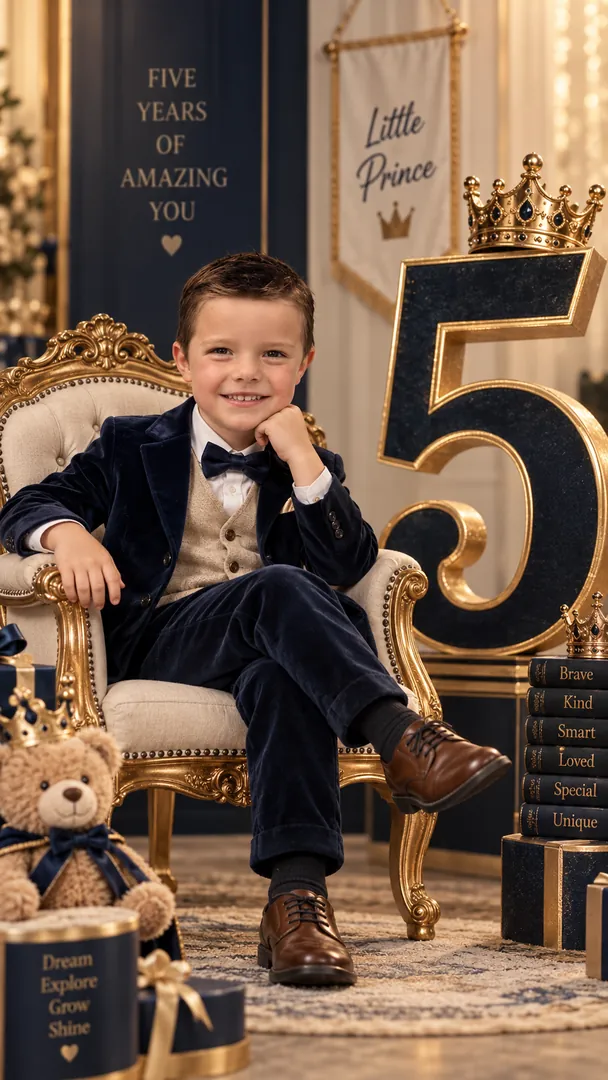
Growing Chapter
Celebrate every year of your child’s journey with elegant, cinematic milestone portraits that capture their personality, growth, and special moments from 1 to 6 years.
AI prompt for Growing Chapter
- Copy the prompt
- Open your AI app
- Attach your photo and send
Create a refined editorial portrait of the child in the attached photo at [age, for example 1 year old], styled for a [theme, for example vintage toy shop] scene: a wooden shelf of old tin toys behind, a small rocking horse, muted mustard and teal colours, a simple outfit with one tiny age detail such as a number balloon. Keep the child's face, hair and skin tone exactly as photographed. Warm tungsten glow, 85mm lens look, a gentle natural pose and smile, vertical 9:16, no other people.
Prefer one tap with no pasting, and your face kept the same? Use the app.

 Coming soon
More Growing Chapter examples
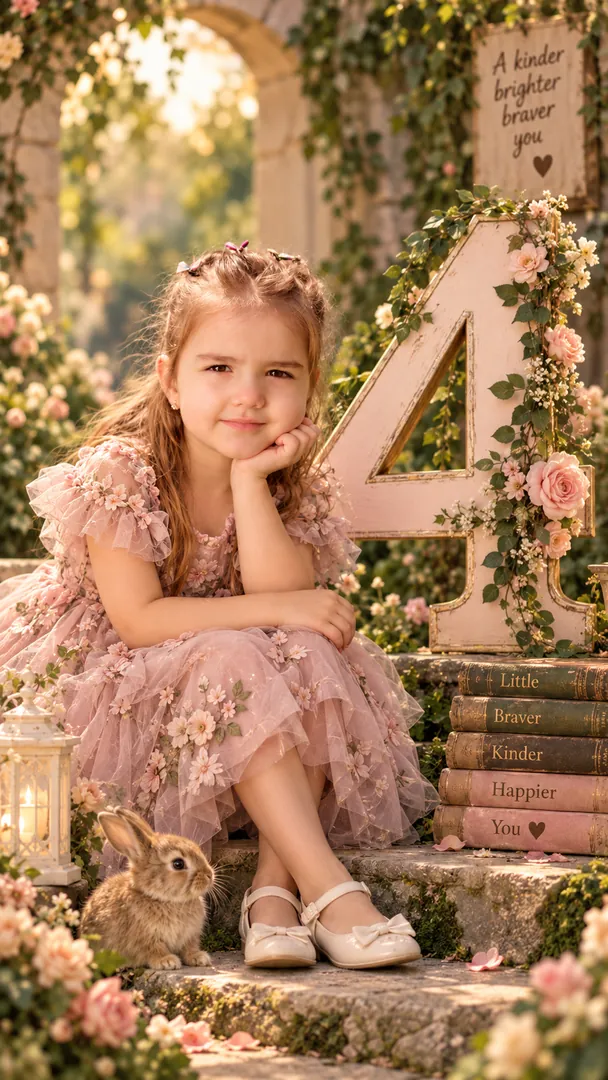
What is the Growing Chapter effect?
Growing Chapter is an AI photo effect from the Baby Photoshoot collection in the Trendy AI Lab app. Upload a selfie and the AI recreates it in this style in seconds, so you get a polished, share-worthy image with no editing skills needed.
How to get the best Growing Chapter result
Use a clear, well-lit photo of the baby's face, taken from the front.
What you get from Growing Chapter
Growing Chapter returns a tall 9:16 image, sized to fill a phone screen. It works from one photo and you can set Child's Age and Photoshoot Theme before generating.
More about Baby Photoshoot
The Baby Photoshoot collection turns baby photos into themed milestone portraits with AI: a monthly top-down series, yearly editorial portraits, a birth announcement card, festive shoots, a close-up collage and a swaddled newborn portrait.
Make your Growing Chapter in three taps
Pick a style
Choose this look in the Trendy AI Lab app, no design skills needed.
Upload a selfie
Add a photo from your gallery. It's used only to make your image.
Generate & share
Your AI image is ready in seconds, download or share it anywhere.
Questions about Growing Chapter
How do I make a Growing Chapter photo?
Open the Trendy AI Lab app, choose the Growing Chapter style, upload one photo, and the app generates your image in seconds.
What photo works best for Growing Chapter?
Use a clear, well-lit photo of the baby's face, taken from the front.
How many photos does Growing Chapter need?
Just one. Growing Chapter works from a single upload, and you can run it again on a different photo as often as you like.
Can I personalise my Growing Chapter photo?
Yes. Growing Chapter lets you set Child's Age and Photoshoot Theme before you generate, so two people running the same style get different results.
Which platforms is it available on?
The image tools work in any browser, on phone or desktop. The AI trends are in the Android app, with the iOS version coming soon.
More Baby Photoshoot styles
View all →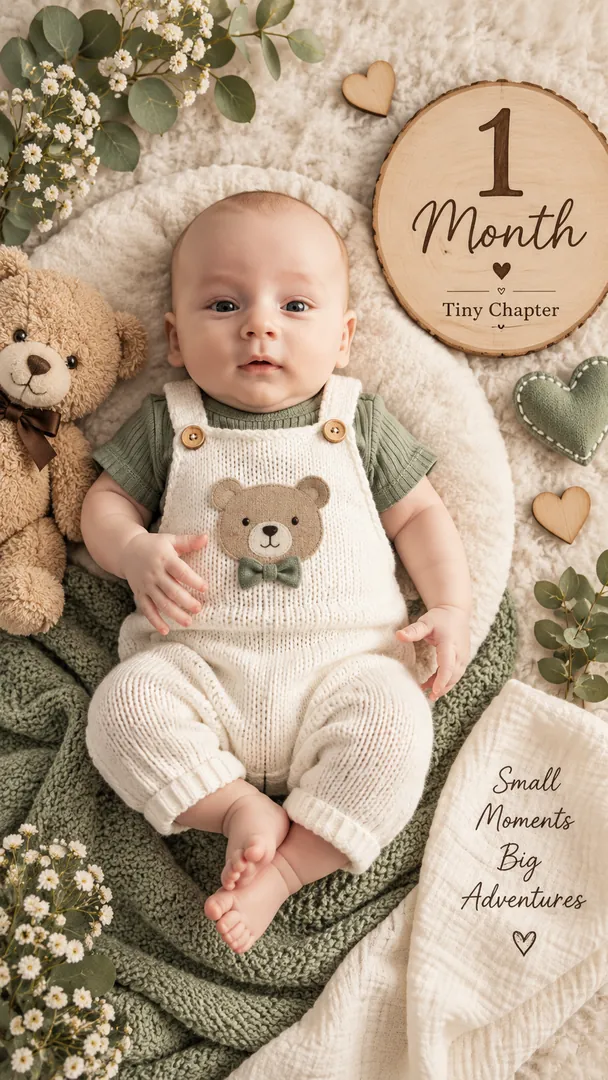
Using the attached photo of my baby, make a top down milestone portrait for [month, for example 1] month, with the baby lying on a soft cream blanket in a [theme, for example cozy bear] setup: a knitted hat with little bear ears, a plush teddy tucked alongside, warm beige and honey tones. Add a small neat sign that reads [baby's month, for example 1 Month], spelled exactly. The baby's face and features must stay just as in the photo. Soft window light from one side, shot straight down with a 50mm lens feel, vertical 9:16, one baby only.
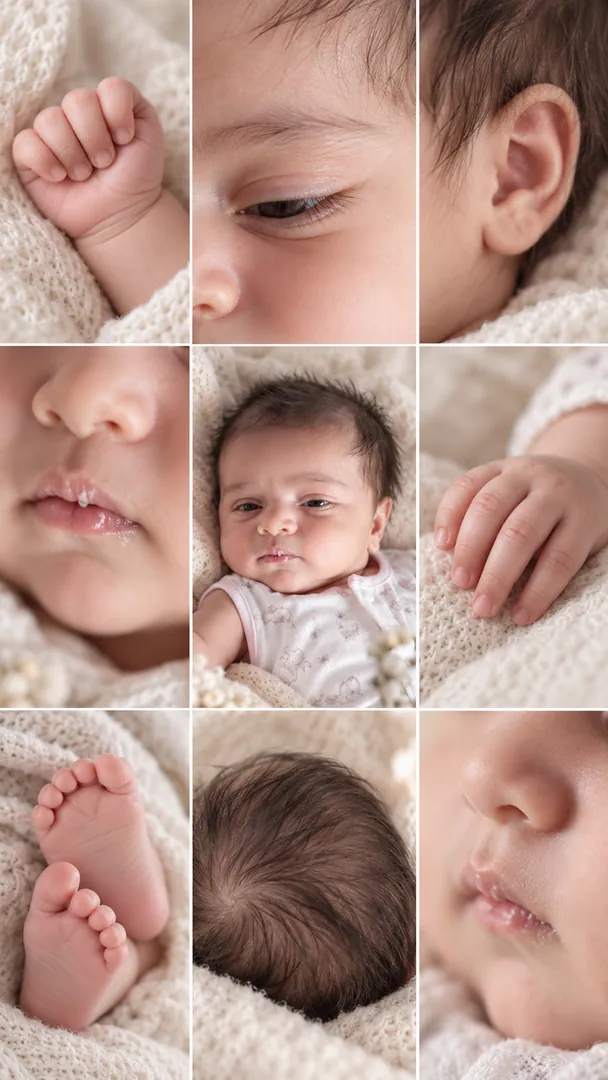
Build, from the attached baby photo, a collage of [number of details, for example 8] equal tiles in a [layout, for example 3x3] grid. The baby's face sits in the centre in soft three quarter view, surrounded by close ups of tiny hands with the right number of fingers, curled toes, feet, eyelashes and a round cheek. Same baby, same skin tone and features in every tile. Cream background, gentle window light, macro lens feel, warm neutral colours, no text, vertical 9:16.
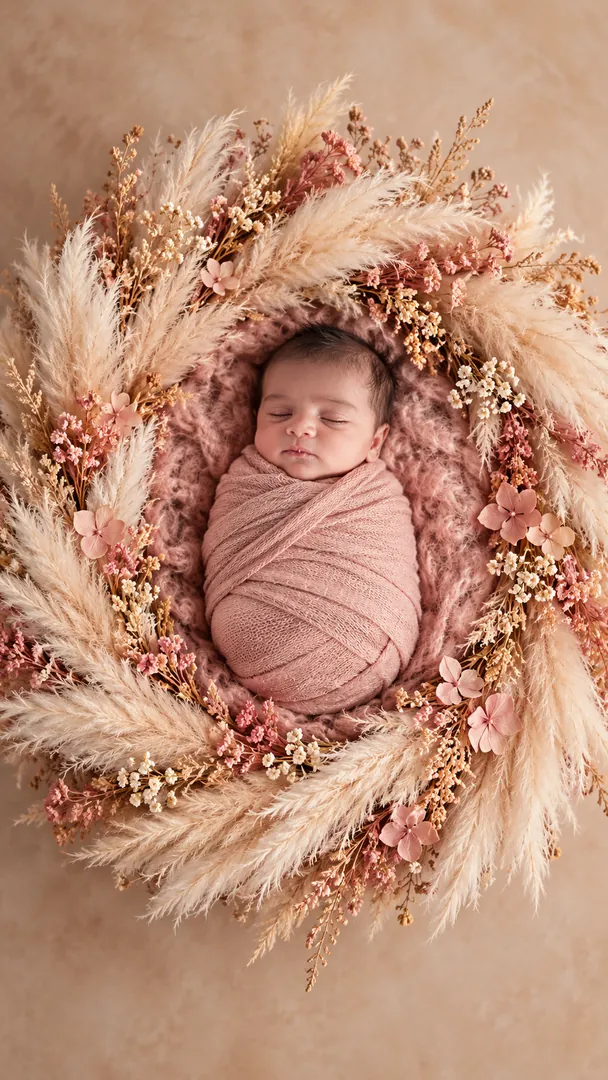
Starting from the attached newborn photo, make a top down portrait of the baby swaddled snugly from shoulders to feet in a soft cream wrap, only the face visible, lying in a round symmetrical nest of [theme, for example peacock feathers]. Keep the baby's face exactly as it appears in the photo. Plain matching backdrop, soft side light with gentle shadows, rich harmonious colours, a quiet fine art feel, vertical 9:16, one baby only.
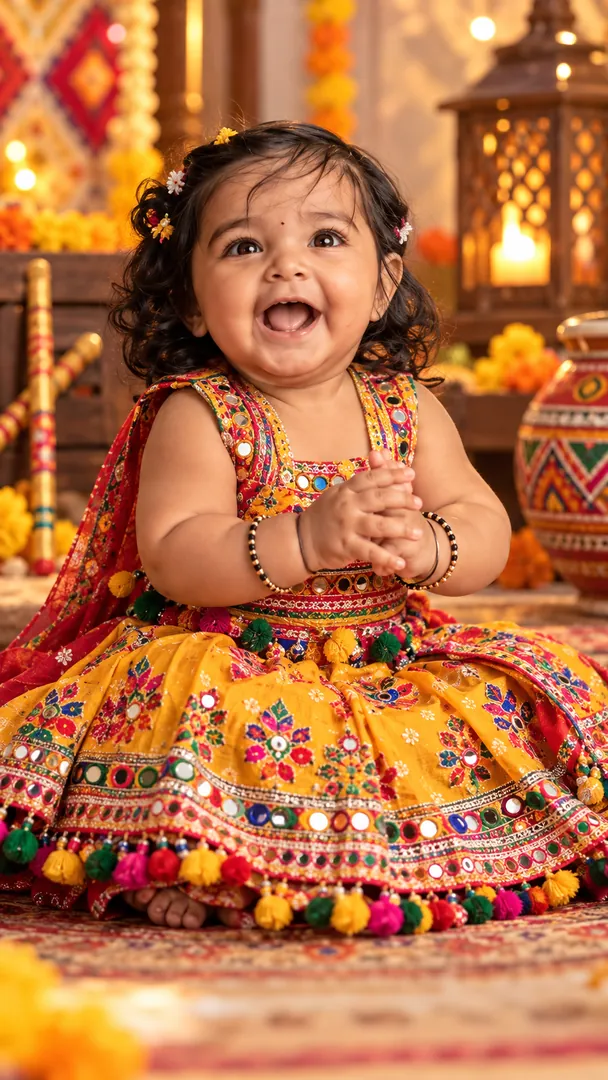
Place my child from the attached photo into a [festival, for example Christmas] celebration, with the original background fully replaced: for Christmas, a cosy living room with a lit tree, cream and red stockings and fairy lights, and the child in a matching outfit with one small accessory like a knitted hat. Their face, age, hair and skin tone stay as in the photo. Relaxed natural expression, warm window light, 50mm portrait look, vertical 9:16. Easter, Navratri, Diwali or Janmashtami work the same way, with that festival's own gentle details.
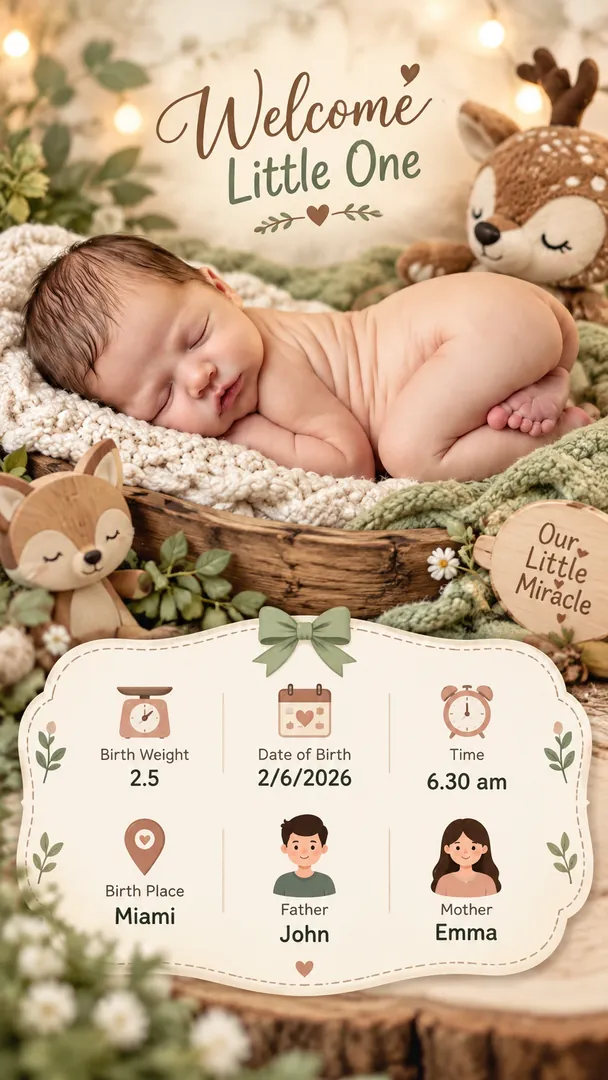
Make a birth announcement from the attached newborn photo: the baby asleep in a soft [theme, for example soft pastel] setup, wrapped in cream cloth with a knitted bunny beside them, pale blush and sage tones. Beneath, a small clean card says Welcome Little One, followed only by these details, spelled exactly: [baby's name], [birth weight], [date of birth], [time of birth], [birth place], [parents' names]. Leave out anything I do not fill in. The baby's face stays true to the photo. Soft diffused light, overhead view, vertical 9:16.
Try Growing Chapter now
Copy the free prompt above, or download Trendy AI Lab to make it with your own face.
Coming soon