Quote Maker
Turn your favorite quotes into eye-catching graphics with customizable fonts, backgrounds, and layouts.
Updated
or drop an image here, up to 25MB
- Never stored: processed in memory
- Live preview, no watermark
- No account needed
Before and after
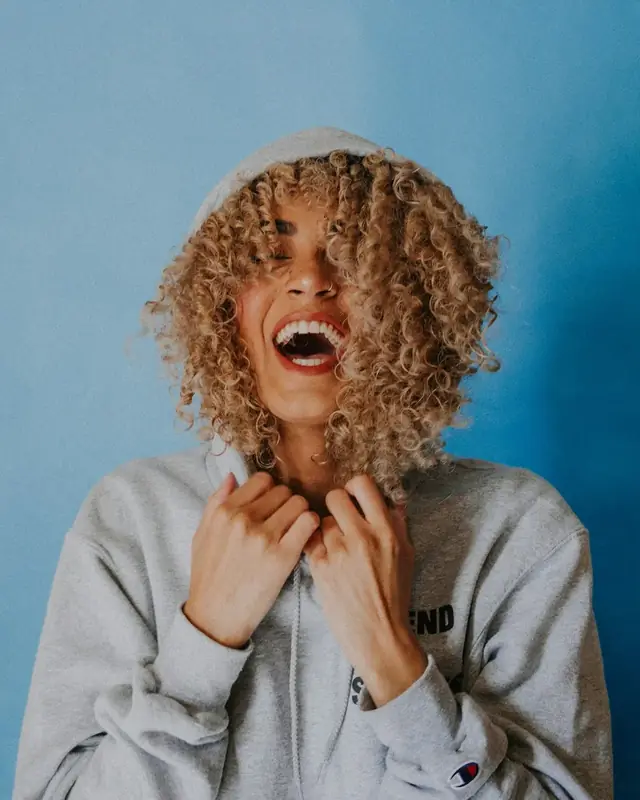
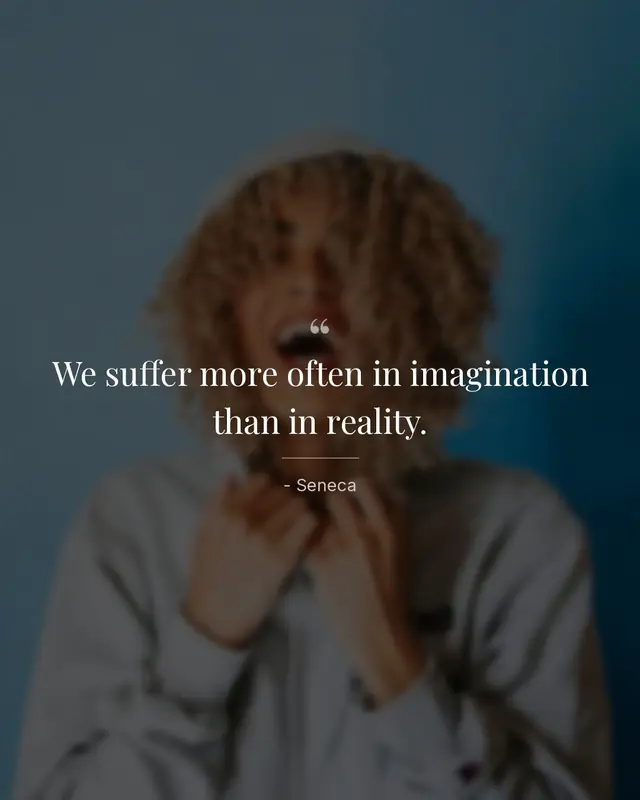
How do I make a quote image?
Add your image to Quote Maker on this page, up to 25MB, then set quote text, quote font style and quote font size (0 = auto) and watch the live preview change. When it looks right, press Download. You get a JPG file, with no watermark or sign-up, and the upload is processed in memory, not stored.
- Add your image. Upload a JPG, PNG, WebP, HEIC, BMP or TIFF image up to 25MB, or drop it on the page.
- Choose your settings. Set quote text, quote font style, quote font size and more. The preview updates as you change each one.
- Check the preview. Look over the live preview before you save it.
- Download the result. Press Download to save it to your device. Nothing is added: no watermark, no sign-up.
Quote Maker at a glance
| Works with | JPG, PNG, WebP, HEIC, BMP and TIFF images |
|---|---|
| Largest file | 25MB per image |
| You download | A JPG file |
| Watermark | None |
| Account | Not needed |
Settings
| Quote Text | Enter your quote or multi-line text (auto-wrapped). Your own text (default “We suffer more often in imagination than in reality.”) |
|---|---|
| Quote Font Style | Typography font family for the main quote. Serif, Sans, Monospace, Bold, Handwritten (default Serif) |
| Quote Font Size (0 = Auto) | Adjust quote size manually, or leave at 0 for automatic responsive scaling. 0 to 120px (default 0px) |
| Quote Text Color | Color for the main quote text. Any colour (default #FFFFFF) |
| Author / Handle | Author name, attribution, or @instagram_handle. Your own text (default “- Seneca”) |
| Author Font Style | Typography style for author / handle line. Sans, Serif, Monospace, Bold, Handwritten (default Sans) |
| Author Font Size (0 = Auto) | Adjust author font size manually, or leave at 0 for auto. 0 to 60px (default 0px) |
| Author Text Color | Color for the author / attribution line. Any colour (default #E0E0E0) |
| Placement Position | Choose placement position across the image canvas. Center, Top, Bottom, Top left, Top right, Bottom left, Bottom right (default Center) |
| Text Alignment | Horizontal text alignment. Center, Left, Right (default Center) |
| Design Style Preset | Pre-designed theme layout preset. Modern stoic, Minimalist, Social card, Vintage typewriter, Bold poster (default Modern stoic) |
| Aspect Ratio & Canvas | Instagram 4:5 Portrait (optimal feed), 1:1 Square, 9:16 Story, or 16:9. 4:5, 1:1, 9:16, 16:9, Original (default 4:5) |
| Background Canvas | Use uploaded photo with overlay or clean gradient/solid backdrop. Image overlay, Solid dark, Solid cream, Gradient midnight, Gradient sunset, Gradient emerald (default Image overlay) |
| Photo Dark Tint | Darken background image so white text stays crystal clear. 0 to 90% (default 55%) |
| Background Blur | Soft blur on background image to focus attention on quote text. 0 to 30px (default 6px) |
| Show Quotation Mark (“) | Display stylish quotation mark decoration. On by default. |
| Show Divider Line | Display minimal accent line between quote and author. On by default. |
When should I use Quote Maker?
Turn a quote, a lyric or a short message into an image for Instagram, a WhatsApp status or a presentation slide. Use your own photo as the background, or pick a plain colour or gradient.
Keep the text short so it stays large and readable on a phone. The 4:5 canvas fills the most space in an Instagram feed, and 9:16 fits stories. When you use a photo, raise the dark tint until the text reads clearly.
Quote Maker: what people ask before they use it
What does the Quote Maker tool do?
Turn your favorite quotes into eye-catching graphics with customizable fonts, backgrounds, and layouts.
What can I adjust in Quote Maker?
You can set quote text, quote font style, quote font size, quote text color, author, author font style, author font size, author text color, placement position, text alignment, design style preset, aspect ratio & canvas, background canvas, photo dark tint, background blur, show quotation mark and show divider line. Every change previews live, so you can see the result before you download it.
What file do I get from Quote Maker?
A JPG file, downloaded straight to your device. Nothing is added to it: there is no watermark and no sign-up.
Is Quote Maker free to use?
Yes, and there is no account to create. You can use it as often as you like, on images up to 25MB.
What happens to the image I upload?
It is processed in memory and returned to you directly. It is not written to our servers, so there is nothing left behind afterwards.